• Home
  • About
  • Webdancers
  • Contact

GregFalken.com

Thoughts on humanizing technology

  • Technology
  • At Home
  • Music and the Arts
  • Education
  • Notes

Google Places Step-by-Step

May 20, 2010 By Greg Falken 8 Comments

Back in January, I wrote a post called Put Your Business On the Map, in which I described the free service from Google that gives any business with a physical location a customizable listing on Google Maps. Google continues to improve this service and has recently renamed it Google Places. Because I think this is such a great marketing tool for small business, I have put together this step-by-step for setting up your own page on Google Places.

Sign in with a Google Account
Google Signin

Google Sign-In

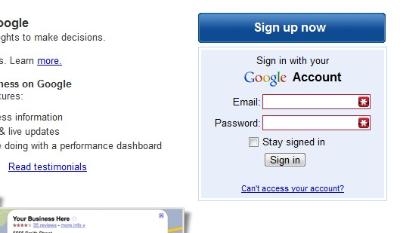
Step 1 is to head on over to http://google.com/places and sign in with your Google account. If you don’t have an account, you can create one by clicking on the blue Sign Up Now button above the sign-in box. Remember that signing up for a Google account is not the same as signing up for Gmail. It’s simply an account that you can use to connect to Google services.

Assuming that this is your first visit to Google Places, click the large “Add a New Business” button, after signing in.

Locate your business
Business Location

Your Business Location

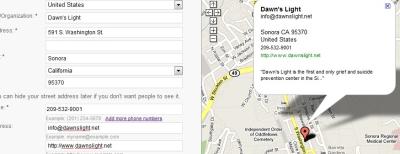
Next step is to locate your business listing in Google Maps. Complete all of the required information about your business’ location and add as much optional information (email, web address, description) as you can. As you enter information, a map with a business location marker will be created on the right side or the page. When everything is correct, click the Next button. All of the information that you add on this page can also be edited later.

If a listing for your business already exists (which is very likely), you will be able to claim it. Otherwise, you can add a new listing.

On the following page, you can add photos, videos, hours of operation, payment types accepted and additional details.

Validate your listing
Validate Your Listing

Validate Your Listing

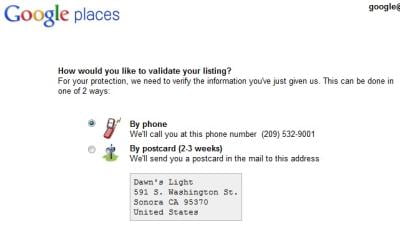
Before your listing can be shown as owner verified, Google will validate the information submitted, either by calling the phone number in the listing or sending a postcard to the business address. Either way, you will receive a validation code to enter on the following page. It’s best to get this validation code by phone right now, while you’re looking at the page, although you can come back and enter it later. Once validated, your listing will appear on Google Maps within one day.

Now what?

Now that your business is listed and verified, information from your Places page will be shown whenever your business is displayed on Google Maps and in general Google search results. You can also take advantage of some additional custom features on your Places page.
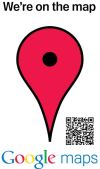
Places QR Code

QR Code Poster

QR code and print-out poster

QR codes are square bar codes that can be read by the digital cameras in most smart phones. By scanning the code, a mobile version of your business’ Places page is automatically displayed on the phone’s browser.

Print out a QR code poster and make it available at your place of business for customers to scan and get more information about your business.

Coupons

Enter a few lines of text and special offer print-out coupons will appear alongside your business listing in Google Maps. You can set an expiration date and specify which of your locations will accept the coupon. Coupons appear on your listing within a few hours of being added.

Post to your place page

For time-sensitive notices, you can add a text message of up to 160 characters to your page. The message will automatically disappear after 30 days.

Y’know what I’d like to see?

I’d like to see the main street of our nearest city (Sonora, CA) sporting QR posters in every shop window. The sidewalks are full of tourists who could be scanning them to find out more about each business and taking that information home with them. In a rural community like ours that is largely dependent on tourism, taking advantage of a no-cost outreach opportunity like shouldn’t take a second thought.

I am willing to help any Tuolumne County business owner, at no charge, with setting up a Google Places page. Please contact me.
Technology Tagged: Google Places, location, mobile, QR code

The Disappearing Protocol

May 13, 2010 By Greg Falken Leave a Comment

Omnibar

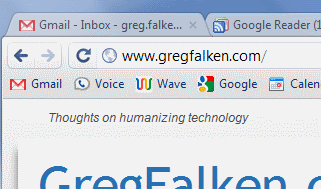
No "http://" required

My web browser of choice these days is Google Chrome, from the “Developer channel”. There are two other channels for Chrome: Beta and Stable. The browser versions delivered through the latter channels are more “ready for prime time” and less prone to changing their behavior on a regular basis.  On April 8th, the Google Chrome Releases blog reported this innocuous change on the Dev channel:

Changes to the Omnibox (e.g. the bookmark star has moved, icon changes, etc.)

The Omnibox is Chrome’s name for the address bar, where the URL (address) of the current page is displayed and where you can type in a new one. The Omnibox however, has much greater ambitions than simply being a box where you can enter a URL. Here’s what the developers at The Chromium Projects have to say about it:

The purpose of Chromium’s omnibox is to merge both location and search fields while offering the user some highly relevant suggestions and / or early results.

The omnibox should focus on augmenting the user’s commands – all of the tools it provides should be oriented around making the user’s input ‘better’, and sending them to a destination.

The change made to the Omnibox was simple, yet controversial: Hide the “http://” (known technically as the protocol scheme) from the beginning of the URL. It has not been necessary to type this part of the URL for some time (though most people don’t know this), so, reasoned Chrome’s developers, why show it at all?

The reaction from the rest of the developer community was swift and nearly unanimous: this is a Really Bad Idea. The Chromium Issue Tracker contains such comments as:

– This is a bad change and should be reverted. This is Google using market share to force a change that doesn’t comply with relevant standards.

– We probably all agree that “http://” is an unfortunately nasty part of URLs, right up there with “www”, “.com” and all the other pesky line noise. Even Tim Berners-Lee apologized for the “//”. However, I don’t think the address bar is the right place to address this issue.

– The protocol specification is not optional. It’s a part of the URI. A URL bar that doesn’t show the actual URI is not very good at what it does.

-Also, www.google.com/ looks plain silly and unbalanced compared to http://www.google.com/. If you’re so into “prettifying” the URL for inane reasons (it’s redundant!), then get rid of that lingering / at the end.

-I’m going back to Firefox if this hits Chrome as a feature.

The response from the Chrome team was terse but clear. After four days, the issue was closed to further comments and its status was changed to “Won’t Fix”.

In choosing to pursue their vision for the Omnibox, the Chrome developers have taken on the burden of making the user experience better, even while making changes that break from the norm. Early in the issue discussion, Chrome developer pkasting wrote:

However, Chromium UI design is not a democracy and is not based on users’ votes, so “I don’t like this” carries very little weight. Concrete use cases that are actually broken are much more valuable — and have already caused us to file the bugs noted above. The fact that we haven’t elected to revert this change doesn’t mean your feedback has been “disregarded”, it means we’re not convinced a revert is justified– especially when it has been in the product for a couple of days.

The question I ask myself when it comes to issues like this is, will this change make my life easier and does it do so by removing choices that I would rather keep? I stopped typing “http://” a long time ago, because I knew I could. I understand why I might want to use it and the other protocol schemes that might be used in its place but the times when I actually do so are very few and far between.

I think that the impulse to simplify should be encouraged and that this is a small step in that direction. The implementation is very likely to change (and improve) before the general public on the Chrome Stable channel sees this feature but I applaud the Google Chrome team for sticking to their own mandate for this small piece of the user interface.

Technology Tagged: Chrome, Omnibox, protocol, URL, user interface

Is We Getting Smarter?

February 12, 2010 By Greg Falken Leave a Comment

The End of the Internet

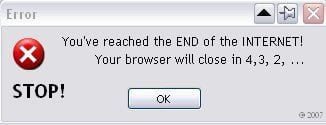
I was looking for a new angle on humanizing technology, when along came a fascinating post from Read/Write Web, with much food for thought. Here’s the back-story:

Earlier today, we had a runaway hit of a post that went viral within a few hours, getting unbelievable pageviews and hundreds of retweets and comments.

The trouble was, it wasn’t because of the post’s content. Due to some interesting SEO magic, the post was one of the first search results for the term “Facebook login.” As a result, hundreds of confused readers bombed us with angry comments about how much they hated the “new Facebook,” a.k.a. our Facebook Connect comment login.

In other words, due to some misdirection from Google, a significant number of people thought that they should be able to log in to Facebook from a Read/Write Web blog post and were most unhappy that they had a hard time doing so.

Rather than (or in addition to) having a good laugh at these folk’s expense, writer Joile O’Dell asks some very good questions about the average person’s experience online.

How can we balance making the Web simple enough for all users while still creating tech cool enough to satisfy geeks like us? And who says either group – nerds or users – is “normal,” anyway?

Those of us who build the applications that people see and use online have a really hard time seeing our work through their eyes. And, truth be told, we don’t always want to, ’cause it’s less fun.

You and your geek friends != middle aged moms. And your users are often statistically more likely to be middle-aged moms.

And most of them have no idea what a web browser is or how it differs from a search engine or a social network. They’ve chosen to be smart about other things, like building cars or making art or raising families. I’ll bet some of them are terrific dancers. We have to build the Web for them, too.

Now while it’s true that most middle-aged moms aren’t geeks, neither are they dumb. I recently spent several days in an office full of mostly middle-aged women, helping them transition from a Microsoft Exchange/Outlook email system to Google Apps. Some were more tech savvy than others but they were all  more than willing to learn a new set of unfamiliar tools in order to help them do their jobs better. (It helps that they are doing incredibly valuable work at the Area 12 Agency on Aging.)

Many of the comments in response to the Read/Write Web post were of the “who cares, they’re a lost cause” variety, a view I’ve sometimes held myself. However, as the Internet spreads through society, there is an increasing middle ground between technology geeks and the terminally clueless. When the technology meets a need, most of these middle grounders are willing and able to make the stretch and learn something new.

In a perfect world, tech products would be intuitive and fun to learn and use. In today’s world, the Internet is hard and I can’t think of an application that’s not at least occasionally infuriating. The best hope I can offer is that some applications are getting easier to use, at the same time that many consumers are getting smarter about using them. At some point, they’re going to meet in the middle. In the meantime, we need to focus on finding tools that actually do a job that needs doing and not worry too much about the rest.

Error message by delade.

Technology Tagged: Facebook, learning, Read/Write Web

What’s In a (Domain) Name?

January 28, 2010 By Greg Falken 2 Comments

DomainsI recently exchanged some tweets with someone who was trying to update her organization’s web site but didn’t have sufficient access to do so. She had a pretty good grasp of what she needed to accomplish but was  being blocked at every turn. It made me think that, while modern site building tools have brought the ability to edit content to the masses, there are still many management functions that require an understanding of how web sites and, indeed, the Internet as a whole, works.

I thought this would be a good opportunity to recycle a post that I wrote in 2008 about that most basic building block of the Internet, the domain name.

Master of Your Domain

Every business and many individuals need their own domain name. This unique alpha-numeric address becomes the name used to identify you in a web site URL or an email address. The great things about a domain name are that 1) you own it and 2) it is portable anywhere on the Internet. You keep the same identity, regardless of which Internet Service Provider (ISP) or hosting company you use. There is however, a lot of confusion about how to register and then use a domain name, as well as their actual function in the structure of the Internet.

Why a domain name?

Every computer on the Internet (even yours) has an address and, being machines, these addresses are numeric. They are referred to as IP Addresses (for Internet Protocol) and they are written in dotted-decimal notation; four numbers, each ranging from 0 to 255, separated by dots (e.g. 147.132.42.18). Even in the early days, when the Internet was used mainly by computer scientists and academics, they realized that referring to everything on the Internet using dotted-decimal notation was not going to fly. So a system was devised to use a domain name interchangeably with its IP Address. In other words, a domain name is a pointer to an IP Address.

In the beginning (and up until 1998), all domain names were registered and maintained by a single entity, called InterNIC (Internet Network Information Center). It was a fairly technical (and expensive) process to use but it had the advantage of being orderly. After that, the business of registering domain names was semi-privatized and domain name registrars began sprouting like mushrooms. The best news about this was that prices dropped drastically. The bad news was that many of them were no less confusing to use, some adopted predatory business practices and others went out of business in relatively short order. But love them or hate them (and I know of few people who love them), the domain name registrar is the first stop in acquiring your own domain name.
Note that many hosting companies (i.e. companies that provide web site and email services) are also domain registrars. You can often get a package deal for domain name registration and hosting services but it is not required that you use the same company for both functions. Where ever your domain name is registered, make sure that you retain control over the domain name record (see below).

What’s in a name?

This is the last bit of technical information, I promise. Every domain name ends in a top-level domain (TLD), the letters after the last dot. The most common TLDs are .biz, .com, .edu, .gov, .info, .int, .mil, .name, .net and .org. You can use any of these TLDs in your own domain name, except that .edu domains must be registered by educational institutions and .mil domains are reserved for the U.S. military.

There are other TLDs, such as two letter country codes and those that are privately administered (such as .mobi, for mobile devices) but these are beyond the scope of this post.

The portion of the domain name before the last dot is where you can get creative. However, you are restricted to the letters a-z (case does not matter), the numbers 0-9 and the hyphen. Spaces are not allowed. This part of your name must be unique across the entire Internet. It has long been true that there are no English, single-word domain names available for registration. If there is one that you must have, you may be able to buy it from its registered owner, as transfers are allowed. If you owned a name like fund.com, you too could sell it for $10 million.

You may have noticed a second dot in some domain names. The name before this dot is called the sub-domain. These names do not need to be registered, since they are guaranteed to be unique by being attached to your primary domain name. Sub-domains are used to divide domains into logical areas, like a web site, a blog or a media server. The most common sub-domain is “www” and this is usually aliased to the same IP Address as the primary domain name. Note that sub-domains require configuration in your domain’s DNS record and that’s the next step in the process…

Don’t you hate it when people lie to you?

I know I said there would be no more technical stuff. You believed that? When you register a domain name, you fill out a bunch of information that becomes your domain name record. This record is held by the domain name registrar and you should have access to this record. Now listen to me: make sure you have (and keep track of) the username and password that gives you access to your domain name record. It can be a huge pain if you don’t have access to this record when you need it (like when you decide to move your web site and email to a new hosting company).

A very important part of your domain name record is the location of the nameservers for this domain. A nameserver is a computer on the Internet running DNS (Domain Name System) software, which is usually operated by an ISP or hosting company. Its location is expressed as a domain and subdomain (e.g. ns.hostingcompany.com) and there are usually at least two of them, for redundancy. Its purpose is to resolve domain names to IP addresses. If a nameserver cannot resolve the address locally, it will search other DNS servers for the correct record, a process called DNS recursion.

For each function that your domain will perform (web site, email, sub-domains, etc.) there will be one or more records in DNS, on the nameservers specified in your domain name record. Don’t worry, you should never have to deal with these records directly but your ISP or hosting company will.

If you decide to change the location where your web site and email are hosted, the location of these nameservers may also change. See why it’s important to have access to your domain name record?

Where to register

There are two types of registrars: those who are accredited by ICANN (Internet Corporation for Assigned Names and Numbers) and everybody else. There are several hundred accredited registrars worldwide and thousands more who resell though them. For what it’s worth, I use GoDaddy.com as my registrar, although I don’t use them for any other services. I find their prices reasonable ($7 – $10 per year, depending on TLD type) and I like their administrative interface for managing multiple domains. The amount of advertising and upselling they do during the purchase process is pretty irritating though. Just keep clicking the links that say, “no thanks, go directly to checkout”.

Conclusion

Registering your domain name independently from your hosting provider gives you the most flexibility when setting up Internet services. Your domain registrar and hosting company or ISP work together but need not be the same company. When you purchase a domain name, its domain record resides with the registrar. Within that record is a list of the nameservers that have knowledge of your domain name and the corresponding IP Addresses of the computers on which your various domain services are hosted.

References:

http://en.wikipedia.org/wiki/Domain_name
http://en.wikipedia.org/wiki/Domain_Name_System
http://en.wikipedia.org/wiki/Domain_registrar

Image by A. www.viajar24h.com

Technology Tagged: DNS, domain, hosting, registrar

Put Your Business On the Map

January 18, 2010 By Greg Falken 1 Comment

Hand Drawn Map

Surprisingly, owners of small, local businesses share a common interest with mega-corporation Google, Inc.  One of Google’s goals is to know what people are looking for so well that they don’t even have to search for it.  Try this: type the word “weather” into the Google search box (on the Google site, not in your browser’s toolbar).  Before you even click Search they have displayed a weather forecast for the location from which you are connected to the Internet.

This is just one of the first steps towards becoming aware of the context in which you are seeking information, in order to return more relevant results.  Mobile devices equipped with cameras and GPS can be even more aware of their surroundings, providing Google with even more information to work with, presumably leading to ever more tailored results.  Remember that Google is in the business of providing advertising to as many eyeballs as humanly possible and they seem to have determined that the best way to do this is to be relentlessly useful.

Google’s famous slogan, “don’t be evil”, can be debated at this point but that’s not the subject of this post. If you are a small business owner, it is almost certainly in your interest to provide Google with as much information as you can.  One way to do this is through the free Google Local Business Center (http://google.com/lbc).  The LBC is a part of Google Maps, although information entered there is shared with Google Search results.  Here, watch the ad:

http://www.youtube.com/watch?v=hjeCmHwqVpU

Here’s the thing: if they don’t get the information from the business owner, they’ll get it from somewhere else, such as an online Yellow Pages provider.  That information is likely to be incomplete, at best.  Businesses should be in control of their own information, especially when they’re given a ready-made tool, such as the LBC.

I have a challenge for my own local community of Sonora, CA.  Let’s get every business in  Tuolumne County to claim their listing or add a new one if it doesn’t exist.  Keep those listings up to date, link it to your web site, add coupons (yes, you can do that), solicit reviews and use this free tool to its full potential.  Tourists and locals alike search these listings every day and I’d like to know if providing them with better information can have a positive effect on our business’ bottom line.

Please let me know in the comments when you give this a try and what your experience is (even if you’re not from Sonora).  Take a few minutes and put your business on the map.

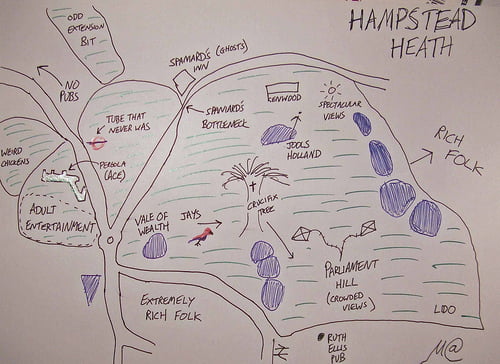
Map by Matt Brown.

Technology Tagged: Google, maps, small business

« Previous Page
Next Page »

Stay in touch

Sign up to receive occasional email updates, including new blog posts.

As a web developer since 1995, I find my attention increasingly drawn to the intersection of computers, the Internet, communication and education. On this blog, I indulge my interest in these and several other topics. I hope you find them interesting too. Read More…

  • LinkedIn
  • RSS
  • Twitter
  • YouTube

Recent Posts

3 Words for 2021

January 1, 2021 by Greg Falken Leave a Comment

The message we should be hearing about masks: An aviation parable

October 24, 2020 by Greg Falken Leave a Comment

3 Words for 2020

January 1, 2020 by Greg Falken Leave a Comment

3 Words for 2019

January 1, 2019 by Greg Falken Leave a Comment

3 Words for 2018

January 1, 2018 by Greg Falken Leave a Comment

Latest Tweets

  • Just now
  • More on Twitter

Search

Tag Cloud

3 Words Aardvark audio bluetooth Chris Brogan Chrome computer contract Crazy Ivan education FCC flying Google google nexus home hyperlocal IndieWeb learning mobile mp3 music mvno net neutrality Network Sierra paleo phone politics posse primal programming QR code Rick Foster Sharon Crost sim skellie social media sonora Strawberry three words Tom Maguire Tuolumne twitter video WordPress writing

Return to top of page
Copyright © 2009–2026 · Website by Webdancers · Log in